• The Holy Communion

    The Holy Communion is an act of worship and thanksgiving that should be participated in and done by churches, gatherings and families in accordance to Christ's word (Luke 22:19) "To do this (the Holy Communion) in remembrance of Him" in order to thank God for sending His Son, thank Jesus for giving His life and to show our unity (oneness) with God... but why?

  • Is listening to secular music bad?

    - Is all secular music bad?
    - Am I saying that secular musicians are not talented?
    - What about secular musicians that are believers?
    - But secular music is better than Christian music
    - Why music... why not tv, games, etc?
    The Bible says to not be equally yoked with unbelievers (2 Corinthians 6:14)... and listening to secular music makes you...

    Is listening to secular music bad
  • Why didn't you tell them about Jesus?

    Hell is real. It is your responsibility (as well as mine) to tell those who do not know about where people without Christ are headed. We will be held responsible for not sharing our faith... for being disobedient. Your salvation is not meant to be mysterious; Everyone should know. Not fulfilling the Great Commission is disobedience to...

  • Worshiping God is more than lifting y...

    Worshiping God, being in the Spirit, feeling God's presence is much much more than lifting your hands up. Some do so because they think it is the right thing to do in God's Presence, others because they see people doing so, and others, for many more wrong reasons: Pride, hypocrisy, etc, or the right ones: adoration, joy, etc. When should you lift your hands up though?

  • Do not take God's glory

    Don't take God's glory. Never do. God gives you gifts, skills and talents, so the world can see, be amazed and through your giving Him glory, lead people back to Him. This is a reminder, one that I've needed to remind myself over and over again... Do not take God's glory or He will take it back...

Showing posts with label firefox. Show all posts

HOW TO VIEW STATISTICS OF ANY WEBSITE INSTANTLY


H
ere's a post I got from TechToggle. If you're interested in website statistics, you'll love this.
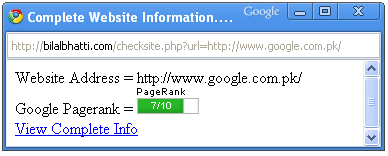
Well my last post on how to check PageRank stuff in Google Chrome was bit not user friendly. This time let me get it simple to you. Just Drag this LINK to your Chrome/Firefox/IE bookmarks toolbar and click on it whenever you want to see the SEO details of the website you are browsing.
DRAG ME TO BOOKMARK TOOLBAR

After dragging:
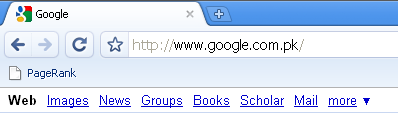
after_bookmark
You can simply rename the bookmark later if you want. Right click on the bookmark and choose edit. Then you may change the "name" field as shown in the screenshot.
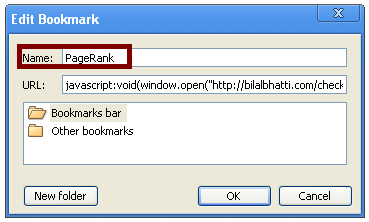
bookmark
Previous Version:
Old_Chrome_PageRank


New Version:
new_chrome_pagerank
After clicking the "View complete info":
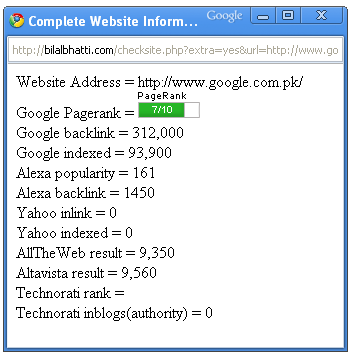
new_chrome_pagerank_detailed
Really nice, especially if you don't have the google toolbar... it's still a good addition to the google toolbar though.
Read More on "HOW TO VIEW STATISTICS OF ANY WEBSITE INSTANTLY"

10 MUST HAVE FIREFOX ADD-ONS


FOXTAB


This add-on extends the functionality of the “Alt tab” shortcut for switching between tabs by making it 3D. If you don’t have this add-on already and you love 3D effects that won’t “eat” your RAM, then install this add-on.


https://addons.mozilla.org/en-US/firefox/addon/8879


FASTESTFOX
This add-on adds a bunch of accessibility upgrades or improvements to firefox. This is my favorite firefox add-on, it has the features of some 3 or more individual add-ons put together and more. My favorite features of this add-on include: the automatically loading of the next page of any website that has many pages without my having to click next page/page #, displays a thumbnail of websites when you search in Google and lots more.


https://addons.mozilla.org/en-US/firefox/addon/9825


ADBLOCK
As the name says, it simply blocks annoying unnecessary ads from showing on a website when it loads. This is a must have for anyone with a not-so-fast internet connection because such ads take forever to load, therefore “eating” your bandwidth.


https://addons.mozilla.org/en-US/firefox/addon/1865


DOWNLOAD STATUS BAR
I love firefox, but no matter how good any software is, it’s not perfect and neither is firefox. Luckily the only imperfection firefox has is the download window that pops-up when you download anything. This add-on conveniently replaces the download window with a compact and nice status bar that doesn’t open in a window, nice huh? Give it a try and you’ll get a good picture of how useful it is.


https://addons.mozilla.org/en-US/firefox/addon/26


G-TRANSLATE
A so sweet feature of Google, g-translate now easily accessible from the right-click menu of firefox when installed.


https://addons.mozilla.org/en-US/firefox/addon/918


GMAIL MANAGER
Now you do not need to go to mail.google.com to check your mail. If you install this add-on, you can check everything from your inbox to drafts, including your account settings easily.


Click the link below to install and/or read more about this add-on.


https://addons.mozilla.org/en-US/firefox/addon/1320


COOLRIS
Another extremely cute 3D add-on for firefox for 3D fans like me. Coolris allows you to view any batch/group of images on an infinite 3D wall. Coolris is very customizable and works on many popular websites e.g Google images, facebook, etc to view images. You can even do a Google image search and view the results directly in coolris.


https://addons.mozilla.org/en-US/firefox/addon/5579


WOT (Website Of Trust)
This add-on extends or adds to the already nice website/online security features of the latest firefox. It helps identify fraudulent websites that firefox probably didn’t recognize as dangerous. It’s a must have for everyone using credit-cards a lot on the internet.


https://addons.mozilla.org/en-US/firefox/addon/3456


TWITTERBAR
A very very creative and useful add-on for posting on/updating your profile on twitter without having to go to twitter.com. While doing anything on twitter, simply just type what you wanna post on twitter in the address bar and add “—post” to the end of the post and hit “Enter” and it goes to twitter. This is just 1 method of posting that you can use with this add-on on for twitter.


https://addons.mozilla.org/en-US/firefox/addon/4664


FEBE(Firefox Environment Backup Extension)
Finally, let’s say, you’ve installed many add-ons and other extensions to firefox and maybe you wanna install them on a new pc, laptop, etc, it’s gonna be hectic to search for all your add-ons to install from scratch. So, instead, you install this add-on which helps you backup all your extensions and helps you even create....(use the link below to read more about this add-on). So, this is a very important add-on for firefox.


https://addons.mozilla.org/en-US/firefox/addon/2109

Read More on "10 MUST HAVE FIREFOX ADD-ONS"

QUICKTIPS: MOZILLA FIREFOX

Okay geniuses, part 3 in my quicktips series is firefox.  Honestly, these are shortcuts that most firefox users can live without using, but as the name of this post(“quicktips”), these will help u speed up the time you use online. I use the following shortcuts very often:


  • “Ctrl T”: Opens a new tab.
  • “Ctrl W”: Closes a tab.
  • “Ctrl Shift T”: Opens the tab you just closed.
  • “Ctrl N”: Opens a new firefox window.
  • “F6”: Moves to the address bar for you to type a web address.
  • “Ctrl S”: Save the website you’re visiting.
  • “Ctrl P”: Prints the web page you’re visiting.
  • “Ctrl F”: Find something on a web page.
  • “Ctrl Tab”: Moves to the next open tab.
  • “Ctrl Shift Tab”: Moves to the previous open tab.
  • “Ctrl +”:  Zoom in.
  • “Ctrl –“: Zoom out.
  • “F5”: Refresh the page.

The following are some interesting shortcuts and tips (I don’t use these ones often):

  • “Spacebar”: Scrolls down the page.
  • “Shift Spacebar”: Scrolls up the page.
  • Middle-click on a link: Opens that link in a new tab.
  • Hold “Ctrl” and click on a link: Opens that link in a new tab
  • “F11”: Makes the browser window fullscreen… if you’re interested, I hardly use it.
  • “Ctrl U”: Shows the source code for the web page you’re viewing. This feature has a disadvantage though, you can’t edit the source for the webpage through the firefox page source viewer. I guess this is for webpage copyright reasons.
  • “Ctrl J”: Opens the downloads window to view the list of recently downloaded files.

Finally, something I’ve noticed among many firefox users I know is this. When they are downloading a file, it doesn’t show them the location to save or download the file to. The file downloads automatically to the desktop. To fix this, go to “Tools – Options” or press “Alt T O”. then click on the “Main” tab and select  “Always ask me where to save files” then click “OK”. Use the window below as a guide.


Hope these tips were useful.
Read More on "QUICKTIPS: MOZILLA FIREFOX"

HOW TO DOWNLOAD FLASH CONTENT FROM THE INTERNET

If you want to download a flash game, try the method on THIS PAGE. If it doesn’t work then try the method below. This method downloads a lot of flash content and objects on a webpage. If you see an ad you like, a flash slideshow, etc, this method will probably help you download it.

STEP 1
on the menu bar, select “Tools”-“Page Info”...

You should get this Window


STEP 2
Select the “Media” tab. This tab shows all the media(images, flash files, sounds, etc) that are on the current webpage. Search for “embed” under the ‘Type’ section. When you identify “embed” click on it. On the “Media Preview” in this very window, you will see the media you want to download (if it is viewable). If the media previewed is what you want, select it by clicking on it.


STEP 3
Finally, click the “Save As…” button and whatever you have selected will be prompted to be saved. Save the media you want to in a location you can find it easily. Find what you have downloaded, drag and drop the file in Firefox and it will open.
If for any reason the file you have downloaded is not what you want, go back to Step 1 of this tutorial but in the “Media” tab in Step 2, just download every all the media labeled “embed”. Your favourite flash content should be there.
Read More on "HOW TO DOWNLOAD FLASH CONTENT FROM THE INTERNET"

HOW TO DOWNLOAD ANY FLASH GAME FROM THE INTERNET


Any Firefox users out there??? Well, I’m a Firefox user and nothing will ever convince me to use Internet Explorer not even if I was paid $100,000 (no offence to IE users)… but this is not a diss battle between Firefox and IE, I’ll just show one of the features of Firefox that might convince IE users to switch to Firefox. I don’t know if this feature is available in IE, tell me if it is, I don’t use IE so I don’t know.

Okay, before I continue, I’ll like to point out that this method doesn’t work for every online flash game, but works for many, you’ll just have to test it on the flash game you want to download to know if it works. If you want to download the latest version of Firefox, click here. For an alternative method to download flash games, click here


STEP 1
Make sure you let the flash game load completely. Some flash games load the next stage of the game only after you’ve completed the previous stage, so what I’ll advice is that you play the game to the end before you move to step two (but this is not a requirement).

STEP 2
Press “Ctrl  S” to save the webpage, then select “Webpage complete” as shown in the image below then click save.


STEP 3
Locate the .html (webpage) you saved and open it. You should be able to play the game in Firefox offline. Alternatively, look for a folder with the same name as the webpage you saved and open it. Search for a file with a .swf extension. Drag and drop that file in Firefox and play the game. Any issues? Drop a comment.
Read More on "HOW TO DOWNLOAD ANY FLASH GAME FROM THE INTERNET"

HOW TO VIEW HIDDEN PASSWORDS WITH ASTERISKS

I came across this awesome hack from raymond
This hack is for you to view any hidden asterisks in any textbox. You can only use this hack in firefox and it can only work if Javascript is enabled. I’ll use gmail to show you an example.
You type in the password in the password textbox then all you have to do is to paste the code in the file below (the file is a .txt file. Open it and copy the code from there) into your address bar and hit enter.
Firefox will now display any hidden password in asterisks in a pop-out window like in the image below.
Note that "etmpassword_so_cool" in the image below is the password for the gmail account.


Read More on "HOW TO VIEW HIDDEN PASSWORDS WITH ASTERISKS"

How To Delete Your Browsing History On Internet Explorer And Firefox

This is a very simple process and can be done in only two(2) steps. Just follow the steps referencing the images shown below.

INTERNET EXPLORER

STEP 1
Open Internet Explorer. On the menu bar, click “Tools - Internet Options”

STEP 2
Locate “Browsing History” on the window that appears, and then click “Delete” to delete your browsing history.


MOZILLA FIREFOX

STEP 1
Open Firefox. On the menu bar, click “Tools – Clear Private Data”.


STEP 2
The window below should appear. Select the options you want to delete and click the “Clear Private Data Now” button. This will erase your browsing history.

Read More on "How To Delete Your Browsing History On Internet Explorer And Firefox"